How to Backup Thunderbird Emails to External Hard Drive?
Jackson Strong | November 20th, 2025 | Data Backup, Mozilla Thunderbird
Thunderbird is one of the most popular free email clients that offers a simple interface and reliable storage. But like any data stored on a computer, your Thunderbird emails are vulnerable to system crashes, accidental deletion, malware, or hardware failure. Losing important emails can be frustrating — especially if they include work files, receipts, or personal conversations. That’s why it’s essential to backup Thunderbird emails regularly.
Creating a backup on your local storage or external hard drive ensures your data stays safe even if your computer fails. In this guide, we’ll show you how to backup Thunderbird mailbox manually and automatically.
Why is Thunderbird Mail Backup Important?
Before we start, let’s understand why backing up your emails is important:
- Prevents data loss from system crashes or corruption.
- Keeps copies of important emails for business or personal records.
- Frees up space in your inbox by archiving old data.
- Makes it easier to transfer emails to another PC or Outlook account.
How to Backup Thunderbird Emails to External Hard Drive?
Here, we are going to explain four different ways to save Thunderbird emails to hard drive:
- Use ImportExportTools NG
- Manual Save As option
- Thunderbird Profile Backup
- Using Automatic Tool
Let’s discuss each method in detail one by one.
Method 1. Save Thunderbird Emails to Hard Drive Using ImportExportTools NG
Use a free add-on called ImportExportTools NG to backup your emails. This method is ideal for users who want to back up a few folders or small mailboxes.
1. Open the Thunderbird application on your system.
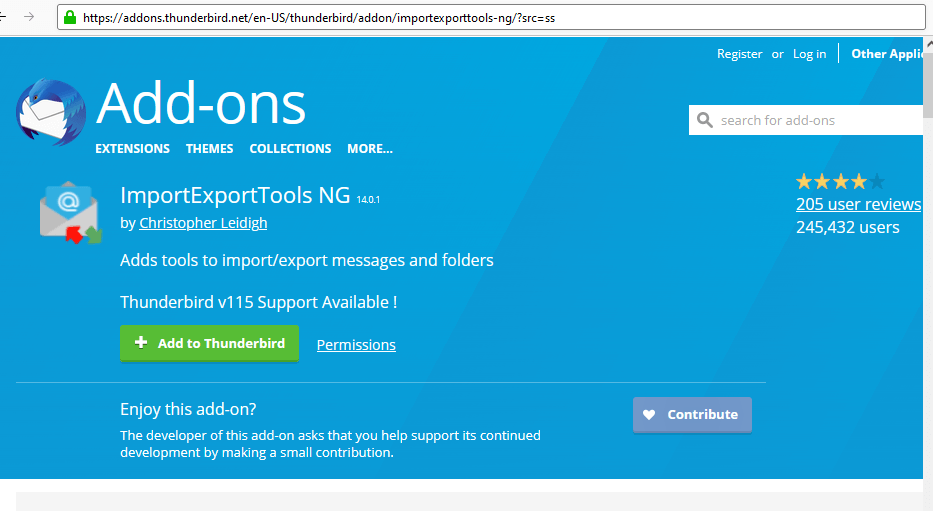
2. Press the Alt button and choose Tools >> Themes & Add-ons.
3. Search for ImportExportTools NG and add it to your application.
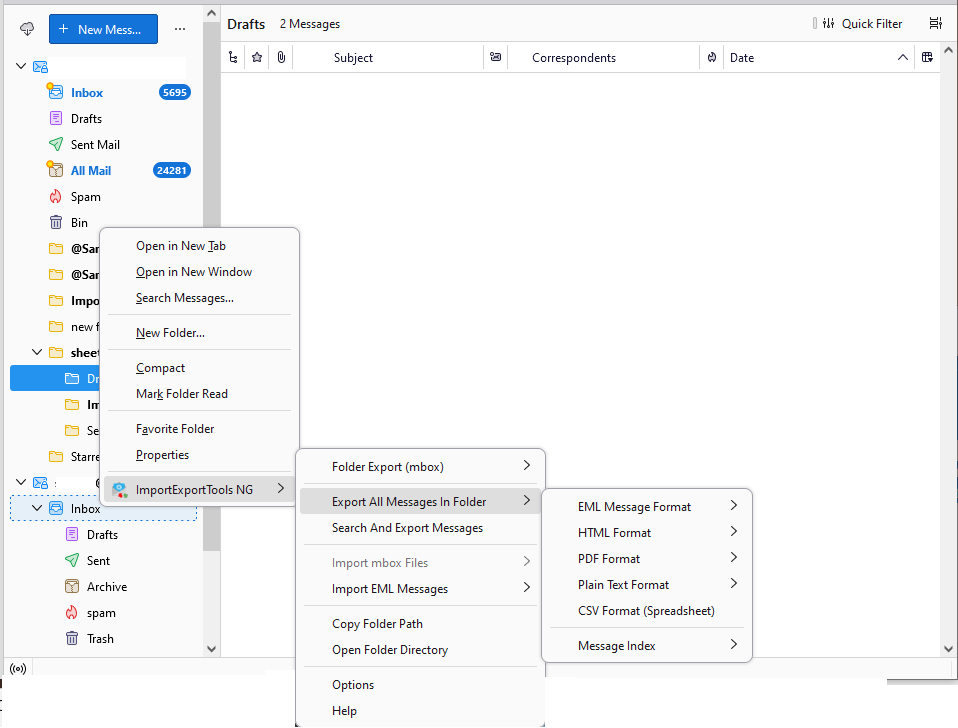
4. Now right-click on the email folder you want to export.
5. Select ImportExportTools NG >> Export Messages ina Folder >> Select File formats.
6. Alternatively, you can also choose Export Folder (mbox) >> select option.
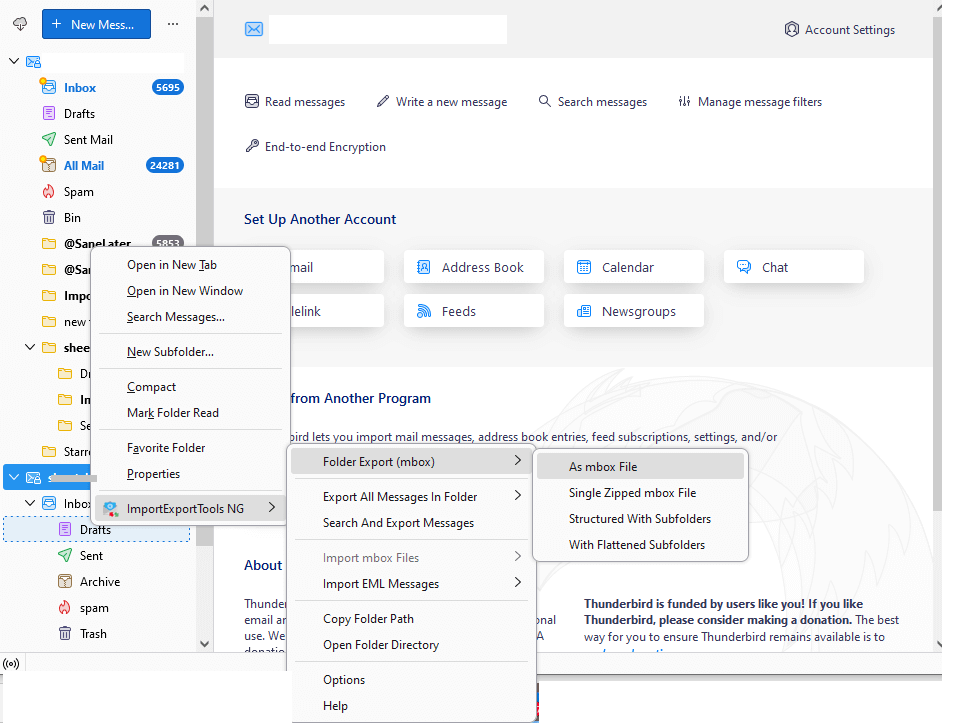
7. Moreover, right-click on your email ID and export your complete profile.
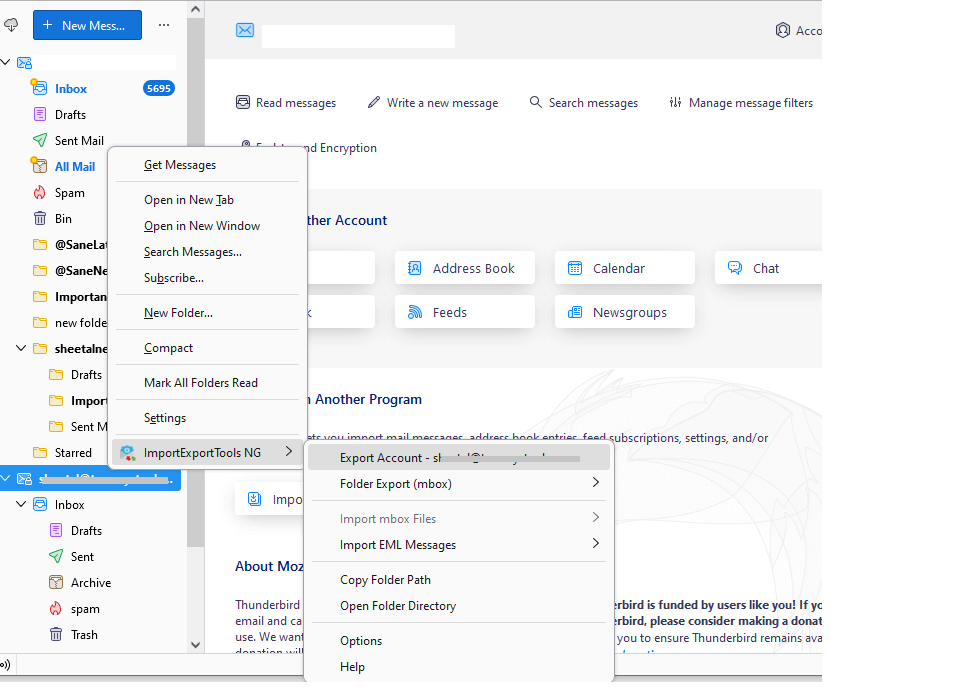
That’s it! Your Thunderbird emails will be save process may take some time depending on your mailbox size.
Method 2. Backup Thunderbird Emails Using Save As
This application offers built-in feature to execute the Thunderbird backup process. Follow these steps:
1. Open the Thunderbird email client.
2. Click on the desired folder to backup.
3. Select the email that you want to save.
4. Now, right-click on the mouse and select Save As option.
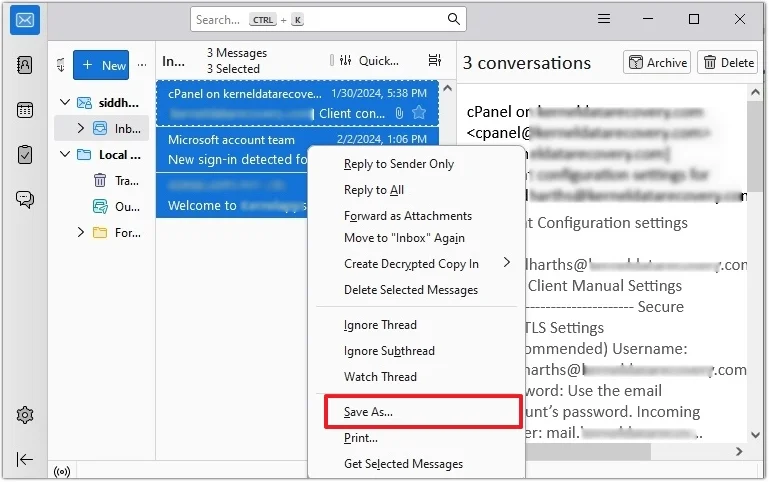
4. Choose the desired folder location and click on the Save button.
In this way, you can save your emails in EML files.
Method 3. Thunderbird Profile Backup
1. Start the Thunderbird application on your system.
2. Click on the three horizontal lines and select Troubleshooting Information from the Help menu.
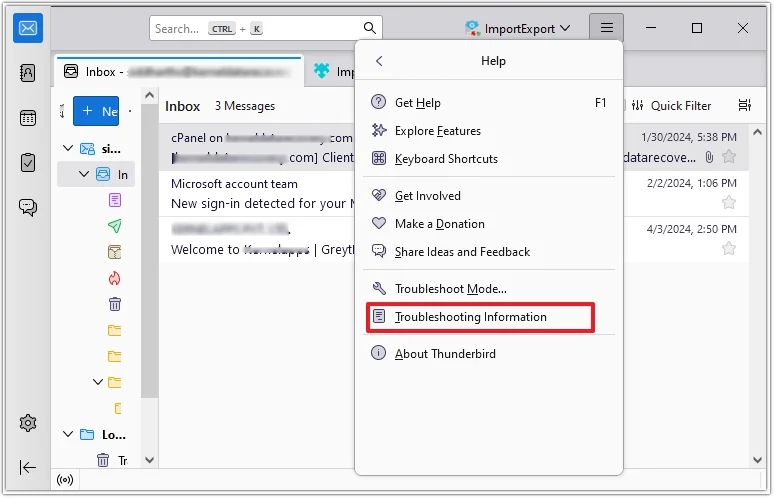
3. Go to Profile Folder and select Open Folder.
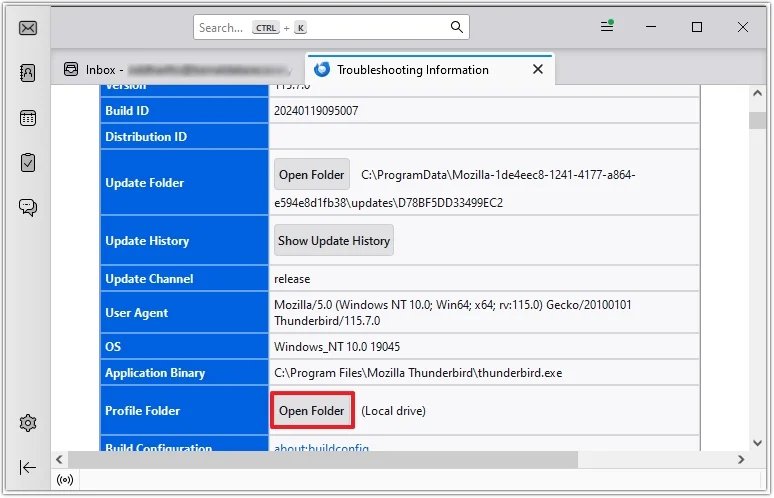
4. Once you click on Open Folder, it will launch the profile directory.
5. Copy the profile folder and paste it into the desired location.
Limitations of the Manual Methods
Works best only for a few folders, not large mailboxes.
- Requires manual effort and time.
- The chances of data loss are higher due to performing several steps.
- Suitable for only small-scale backups.
- No option for automatic or scheduled backups.
Method 4. Backup Thunderbird Emails Using Automated Tool
If you find the manual methods time-consuming or want a faster alternative, you can try Advik Thunderbird Backup Tool. This software is designed to simplify the Thunderbird backup process by automatically saving all your emails to your preferred location or format.
With Advik, you don’t need any technical skills — just select your Thunderbird profile, choose the destination format (like PST, MBOX, EML, or PDF), and start the backup. The tool ensures 100% accuracy, keeps your folder structure intact, and even includes attachments during export. It’s a smart choice for users who want a quick and reliable way to protect their email data.
Download the software and try it now!


Note: With the trial demo version, you can export 25 items from each folder for free.
Steps to Backup Thunderbird Mailbox to Hard Drive
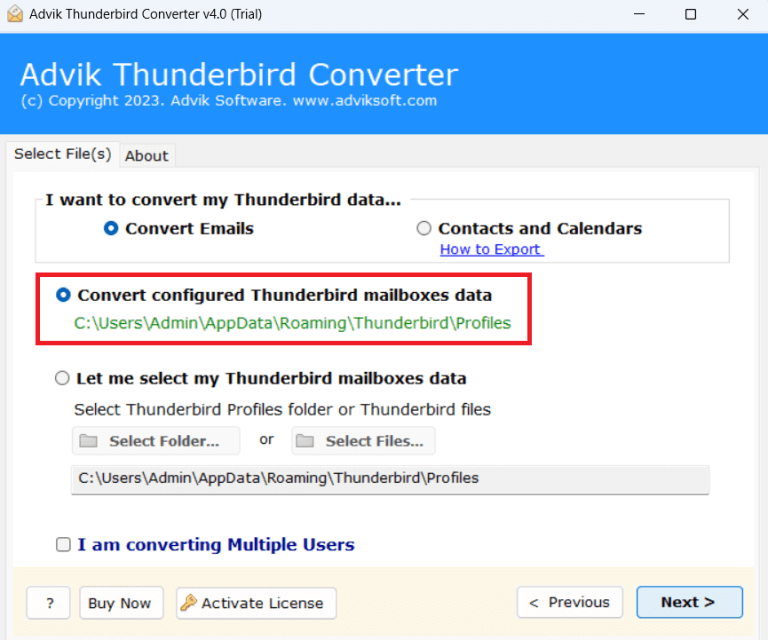
1. Run the software and select your Thunderbird profile.
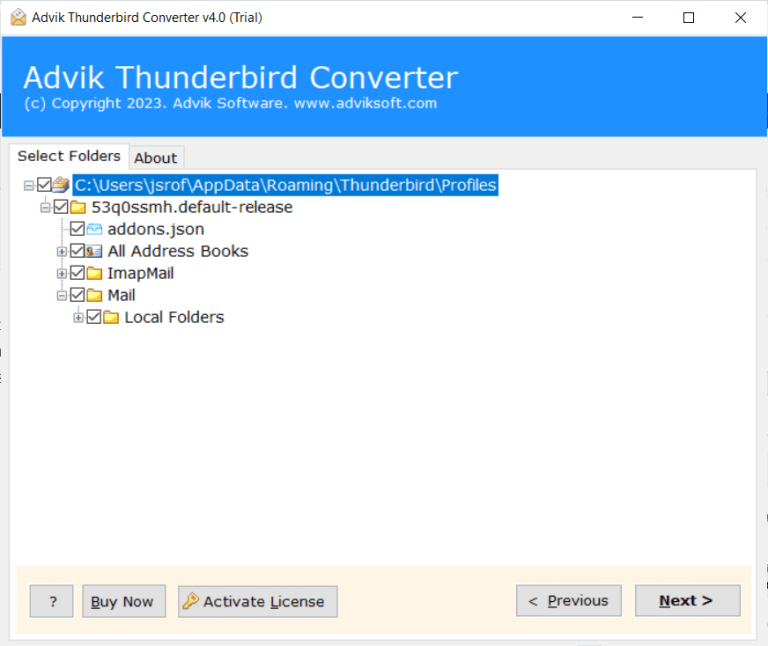
2. Choose the email folders you want to backup.
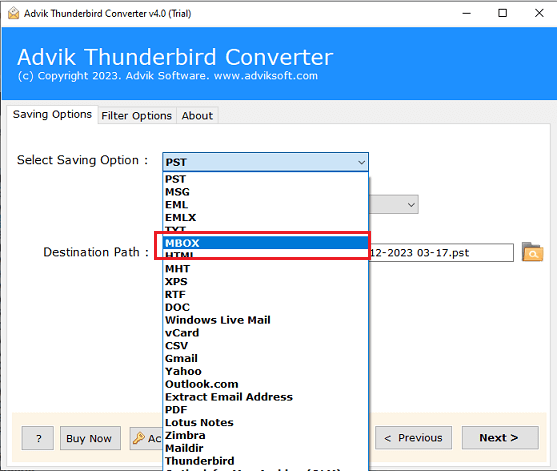
3. Select the saving option from the given list.
4. Select your Hard Drive as target location and click Next button.
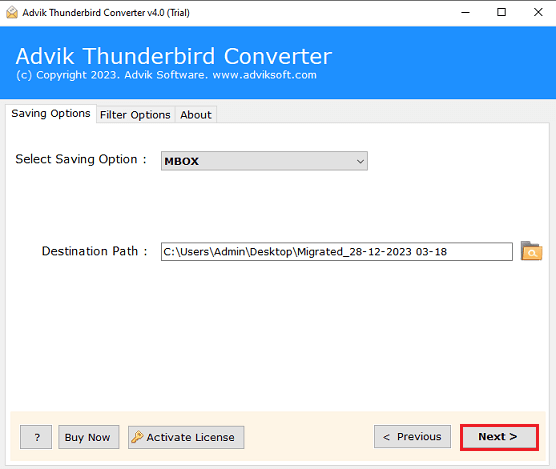
The software will start saving your emails from Thunderbird to External Drive automatically.
After that, it will show a successful pop-up message once done.
Watch How to Backup Thunderbird Emails Automatically?
Why Choose the Advik Thunderbird Backup Tool?
The software comes with advanced backup features. You can do a lot more apart from backing up Thunderbird emails. The key highlights of the software are mentioned below.
- Backup Thunderbird emails with attachments in bulk
- Maintain email folder and sub-folder hierarchy and structure.
- Option to backup single or multiple Thunderbird folders
- Preserve email key elements and attributes while exporting emails.
- Backup Thunderbird emails in 20+ file formats
- Advance filter options for selective backup.
- Works on Windows 11 and all other versions.
- Simple and user-friendly interface for both beginners and professionals.
- A free demo version is available that will save 25 emails from each folder.
Download Thunderbird Backup Tool and explore its amazing features right away.
Tips for Safe Thunderbird Email Backup
- Store your backup on two different locations (e.g., external hard drive + cloud).
- Check your backup periodically to ensure it’s accessible.
- Use meaningful folder names and date tags to manage versions.
- If using Windows 10 or 11, ensure the external drive has enough space.
Conclusion
Backing up Thunderbird emails is a smart way to protect your important data from unexpected loss. In this post, we have discussed how to backup Thunderbird emails to external hard drive using the four best ways. Whether you choose the manual way or an automated Thunderbird backup tool, as per your needs.
Your emails hold valuable information — don’t wait for an accident to happen before creating a backup. Keep them safe on your local storage or external hard drive and ensure peace of mind.
Frequently Asked Questions
Q. 1. How do I backup all emails from Thunderbird?
A. You can backup all your emails by copying the Thunderbird Profile folder or with an automated tool.
Q. 2. Can I directly save Thunderbird emails to my external hard drive?
A. Yes, you can directly take backup Thunderbird emails to external hard drive.
Q. 3. Can I backup my entire Thunderbird mailbox at once?
A. Yes, with Advik Software, you can backup Thunderbird emails, contacts, calendars, notes, and other customized folders in one go.
Q 4. How is the Trial Version different from the Licensed Version?
A. The trial edition is only for testing and exploring the software features. It will convert 25 emails/items from each folder. However, with the licensed version, you can backup unlimited Thunderbird emails.