How to Export Thunderbird Emails to PST? Complete Guide
Quick Answer: Thunderbird can’t export to PST. Free options: add the same IMAP account in Outlook and let it sync, or save messages as EML and drag them into Outlook. For many folders or offline mail, a Thunderbird to PST converter like Advik keeps the folder structure.
On this Page;
- Which Method Should You Use?
- Can Thunderbird Export to PST?
- Where Does Thunderbird Store Your Emails?
- Method 1: Sync through an IMAP account
- Method 2: Save as EML and drag into Outlook
- Method 3: How to Convert Thunderbird to PST Professionally
- How Does Thunderbird to PST Conversion Tool Maintain Folder Structure?
- How to Check the Exported PST File in Outlook
- Watch Video Tutorial
- Final Words
- Frequently Asked Questions
If you need to export Thunderbird emails to PST, choose the method according to where your emails are stored and how much data you need to transfer.
Which Method Should You Use to Export Thunderbird Emails to PST?
There are three ways to migrate Thunderbird emails to Outlook supported PST file data. The correct choice depends on whether your messages are stored on an email server or locally on Thunderbird.
| Method | Best For | Folder Structure | Requires Outlook |
|---|---|---|---|
| IMAP Syncing Process | If emails are available on the IMAP server | Depends on Sync | Yes |
| EML Export Procedure | A few selected messages | Limited | Yes |
| Thunderbird to PST Conversion Tool | If data is stored in local Thunderbird folders and also useful for large data sets | Yes, supported by the conversion tool | No for conversion |
If you simply want to access the Thunderbird emails into PST file through Outlook, then drag and drop or IMAP synchronisation may be sufficient depending upon the number of emails you have. If you want to convert Thunderbird data saved locally into a portable PST file, then a dedicated converter will be more suitable.
Can Thunderbird Export to PST?
No. Thunderbird doesn’t have a command to directly export its mailbox data as an Outlook PST file.
Thunderbird and Outlook have different mailbox formats. Thunderbird saves messages in MBOX-based mailbox files while PST is the data-file format of Outlook. So you can’t simply rename a Thunderbird mailbox file and add a .pst extension.
If you are searching for a way to export PST file from Thunderbird email client, you need to use any of the following medium to carry out this migration or conversion task.
The options available are:
- Sync Outlook with the same IMAP account.
- Import Thunderbird emails to Outlook as EML files.
- Use dedicated Thunderbird converter tool to convert Thunderbird mailbox data directly to PST.
Both of the first two methods might work for some cases but they are not equivalent to the complete conversion of local Thunderbird mailboxes into PST file.
Where Does Thunderbird Store Your Emails?
Knowing where Thunderbird stores its mailbox data before initiating any method to export Thunderbird emails to PST can be helpful.
Thunderbird stores account information, messages, settings, address books and other data inside its profile folder. Mozilla’s own backup documentation says that your Thunderbird profile contains accounts, messages, address books and settings.
However, Thunderbird stores its mailbox data in MBOX files. It is a common format for storing Thunderbird mailbox data. Depending on the account and operating system, these files may or many not have a .mbox file extension.
For example, you might see files such as: Inbox, Sent, Drafts, Archives, Inbox.msf, Sent.msf, etc.
Files ending in .msf are index files. These are not the real mailbox messages. The real mailbox file ( no .msf extension ) contains the email data .
Therefore, do not try to convert or rename .msf files as they could be your mailbox files.
Mozilla also has an in-built Thunderbird profile export feature for creating a backup. Currently, the Export tool creates a ZIP backup of the profile, with a size limit of 2 GB for that method; larger profiles can be backed up by copying the profile folder.
Note: A Thunderbird profile backup is NOT the same as a PST file. A ZIP profile is used to backup and restore Thunderbird data, while a PST file is an Outlook data format.
Method 1: Sync through an IMAP account
If your Thunderbird emails are stored on an IMAP server, you can access the same mailbox through Outlook, instead of converting the local Thunderbird files.
Phase 1. Enable IMAP in Gmail
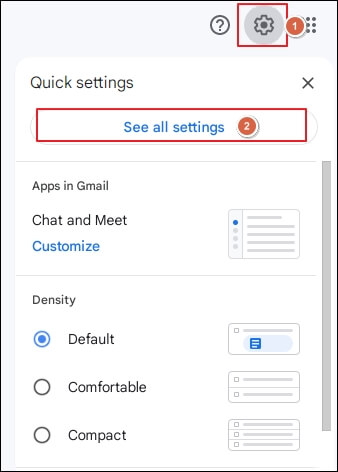
1. Log in to your Gmail account and go to Settings.
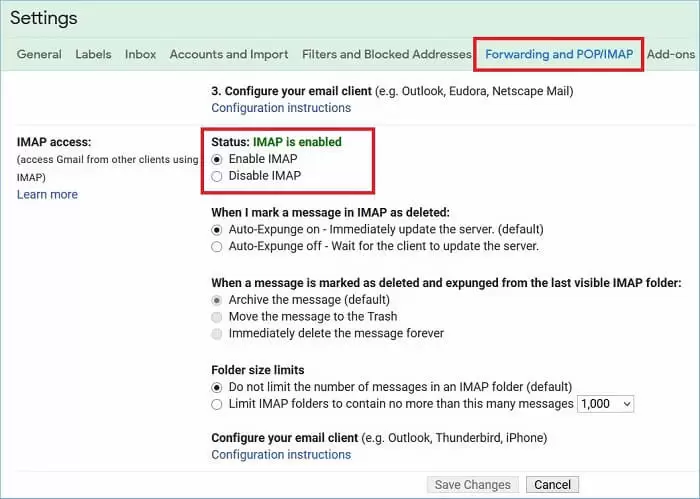
2. Click Forwarding & POP/IMAP section and Enable IMAP. (If not enabled, nowadays it is enabled by default)
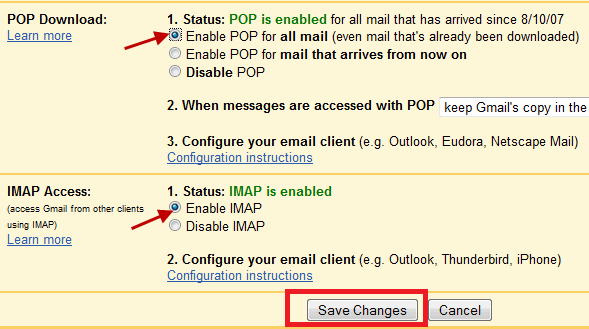
3. Click on Save Changes.
Phase 2. Set up Gmail with Thunderbird
1. Now, open the Thunderbird application on your system.
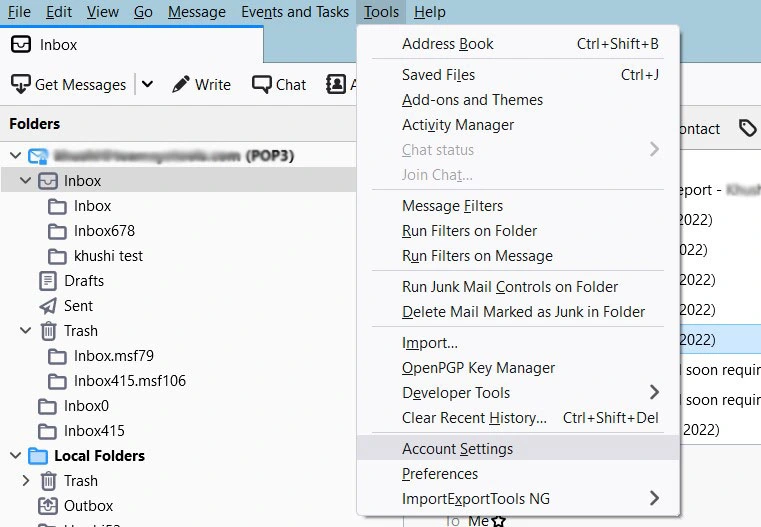
2. Navigate to Tools >> Account Settings.
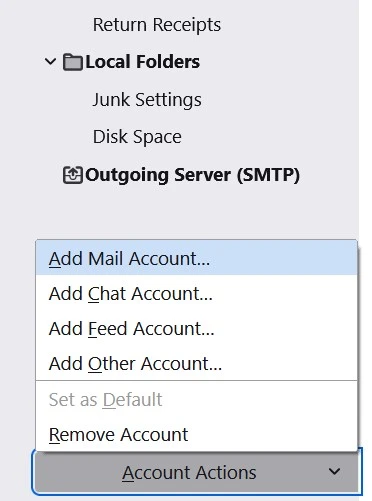
3. Click on Account Actions and select Add a Mail Account.
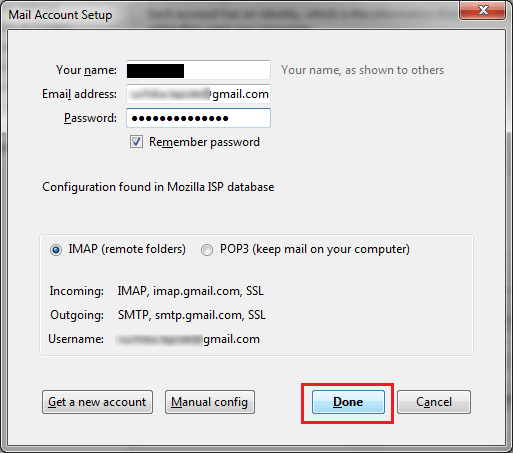
4. Enter your Gmail account login details to set up with Thunderbird.
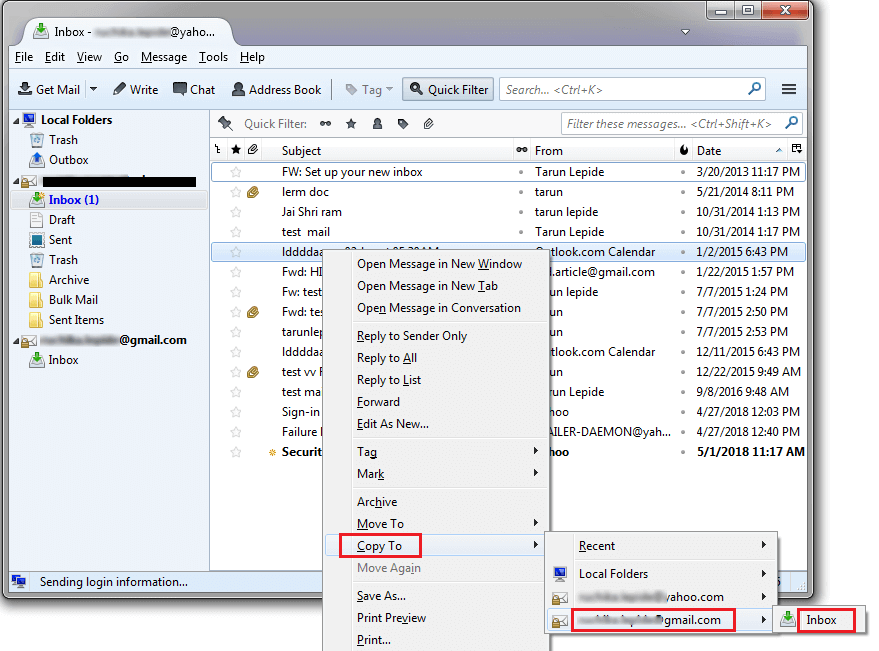
5. Use the Drag & Drop or copy/move option to transfer Thunderbird emails to Gmail folder.
Phase 3. Add the Same Gmail Account to Outlook
1. Now, run the Outlook email client on your system.
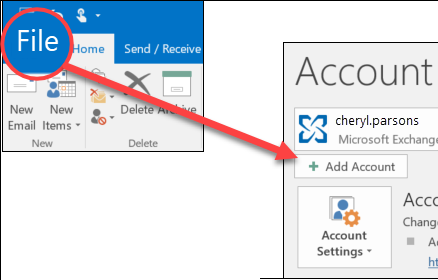
2. Click on File >> Add Account.
3. Enter the email address of the same Gmail account and press Connect.
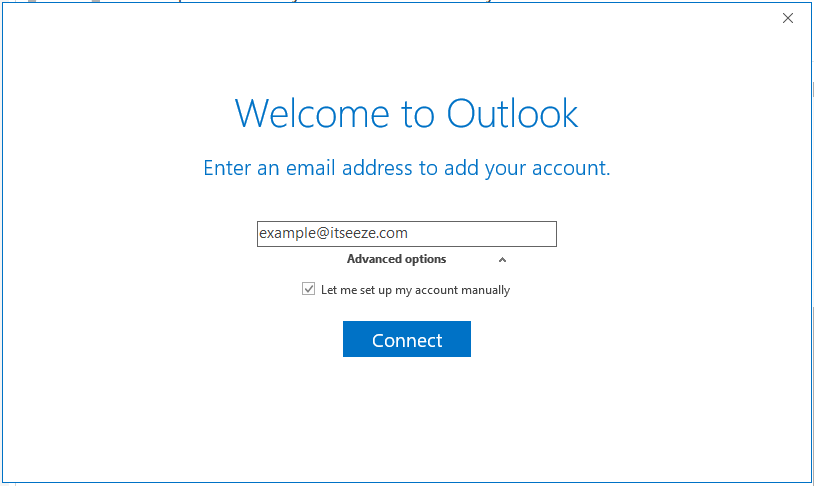
4. Once Outlook completes the configuration process, click on the Done button.
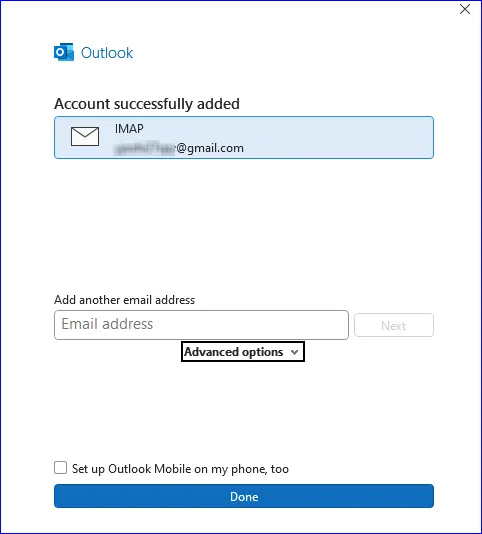
6. Now, a Gmail account is added to Outlook. You will have all Thunderbird emails in Outlook.
Phase 4. Export Thunderbird Emails into PST
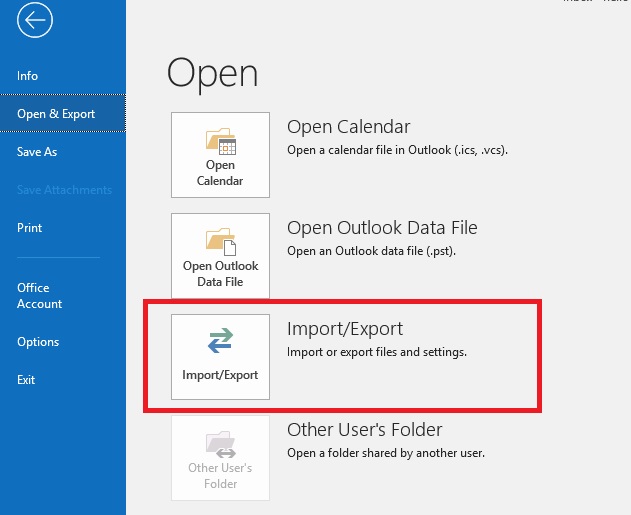
1. Click on File >> Open & Export >> Import/Export in Outlook.
2. Choose Export to a File and click on the Next button.
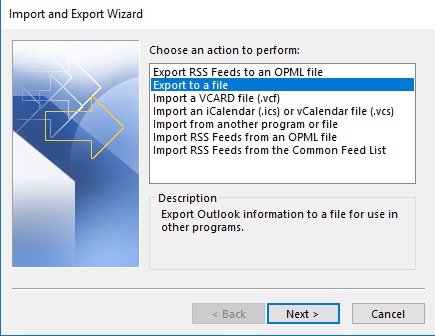
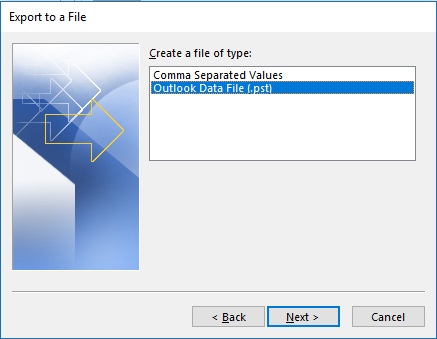
3. Select Outlook Data File (.pst) and press Next.
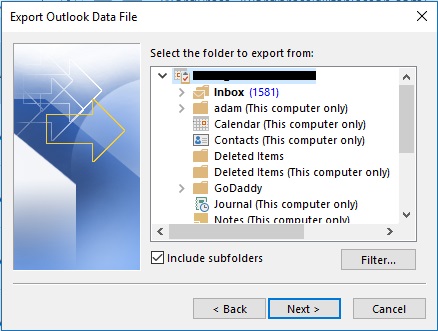
4. Choose the Gmail mailbox folder and click Next.
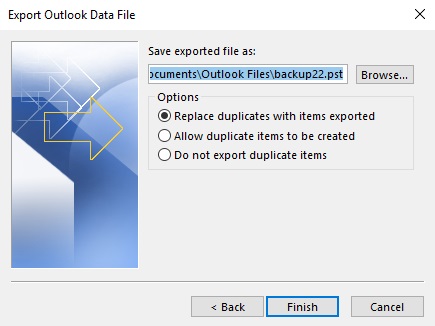
5. Browse the destination location and click on the Finish button.
Open the resultant PST file in Outlook and check the data.
This method is useful in case the original mailbox is still reachable from the email provider.
However, Thunderbird-only local messages that no longer exist on the server are not synchronized by IMAP. If an email exists only in Thunderbird’s local profile, you need another method.
Method 2: Save as EML and drag into Outlook
Another option is to export individual Thunderbird messages as EML files and then move them into Outlook.
This method includes three major parts: first you need to export Thunderbird messages as EML files, then, import them into Outlook; and lastly, export the Outlook folder as a PST file.
It is suitable when you have a relatively small number of emails and already have Outlook.
Step 1. Launch the Thunderbird application on your system.
Step 2. Next, choose the email that you want to export.
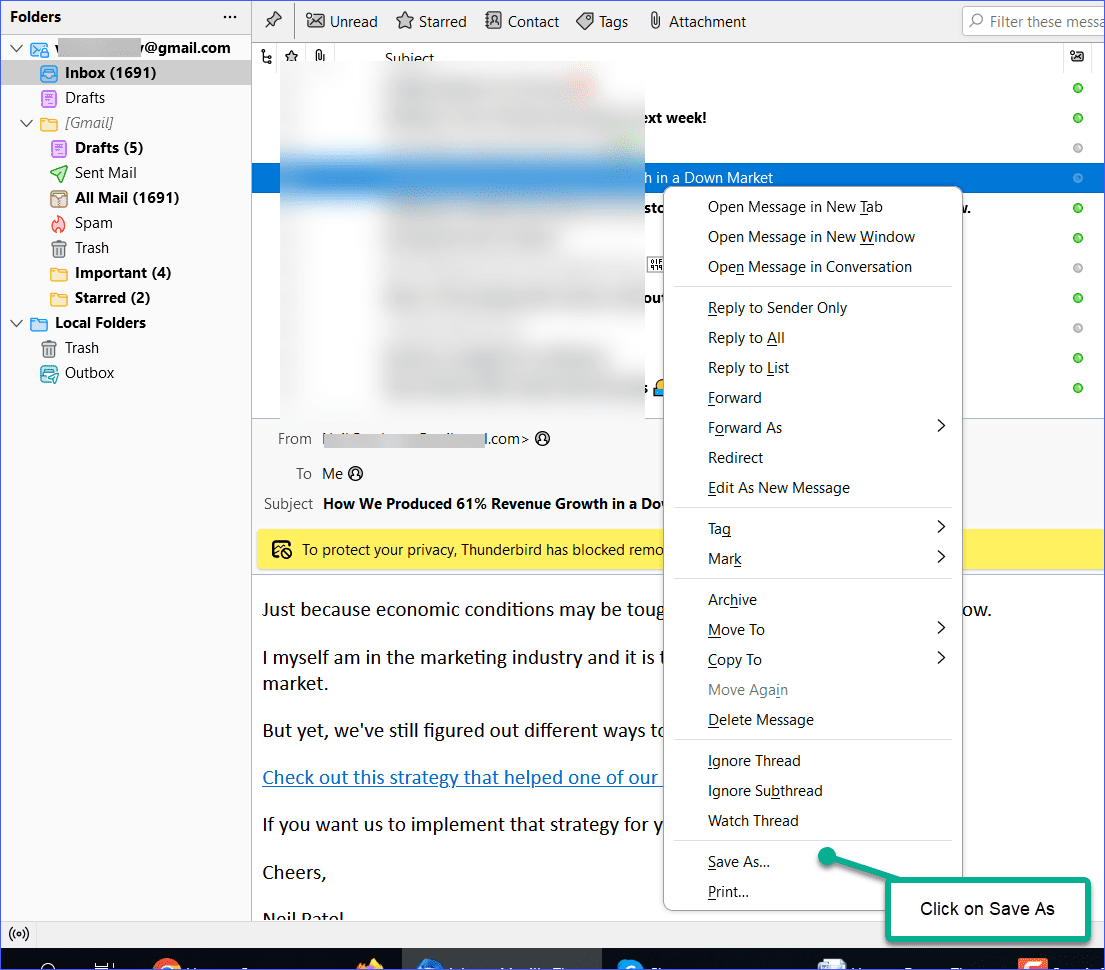
Step 3. Right-click on it and choose Save As.
Step 4. Choose destination folder, give it a name and click the Save button.
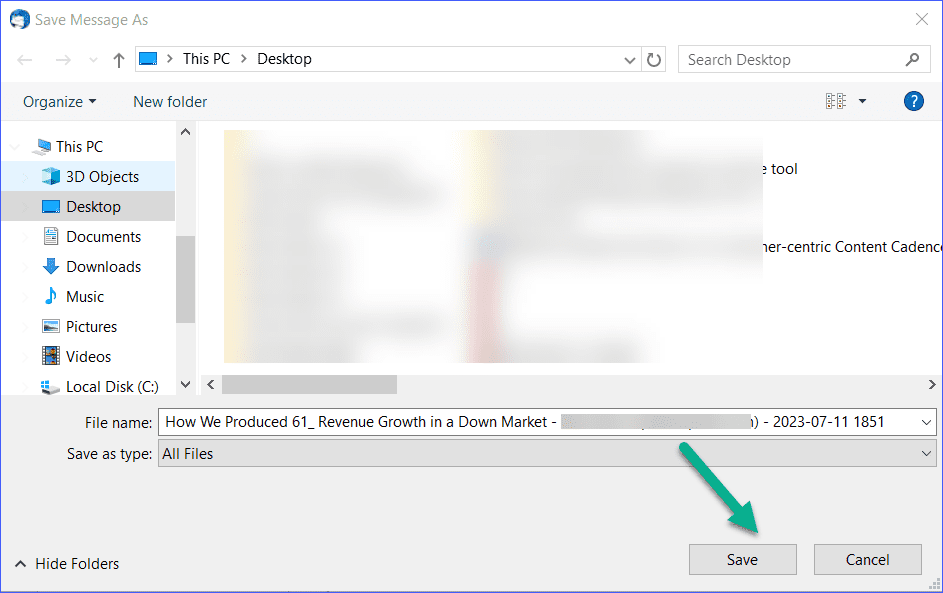
Step 5. Thunderbird email will be saved in .eml format
IMPORTANT: New Outlook versus Classic Outlook. Don’t assume the instructions for the old Outlook menu apply to every version of Outlook.
According to Microsoft’s current documentation, New Outlook for Windows supports PST export through Settings >> Files >> Export.
The traditional way is File >> Open & Export >> Import/Export, which is part of Classic Outlook.
Use the version of Outlook that supports the necessary EML handling and PST export workflow for the EML import workflow described here. If you don’t see the menu you need, make sure you’re using New Outlook, not Classic Outlook.
Step 6. Now, open MS Outlook and create a new folder.
Step 7. Drag and drop the EML file to new folder.
Step 8. Follow the same process for all exported files.
Step 9. Now, navigate to File >> Open & Export >> Import/Export.
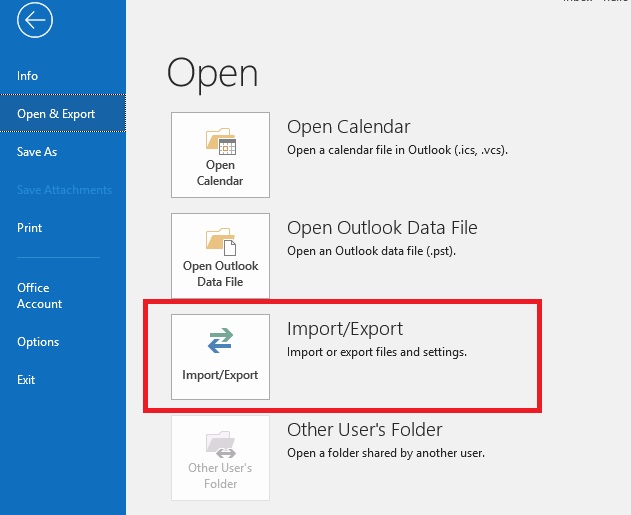
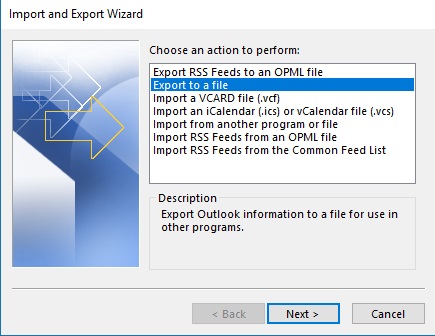
Step 10. Choose Export to a File and click Next.
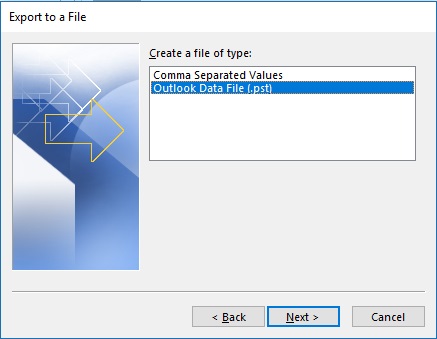
Step 11. Select Outlook Data File (.pst) and press Next.
Step 12. Choose the newly created folder and click the Next button.
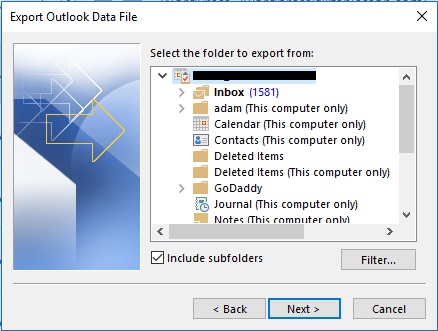
Step 13. Browse to the destination location and click the Finish button.
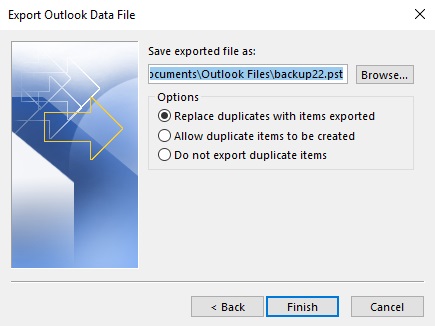
The biggest downside is this manual work; If you have hundreds or thousands of messages, saving and importing them one at a time can be very time-consuming. So this is more appropriate for a few emails rather than migrating a whole Thunderbird mailbox.
Method 3: How to Convert Thunderbird to PST Professionally
If you have Thunderbird emails stored locally and you need a PST with multiple folders, then a dedicated Thunderbird to PST converter can help you out in this scenario.
Advik Thunderbird Converter is a standalone application available for windows that allows users to convert Thunderbird Mail to outlook PST file and other file formats. It directly fetch mailbox data from the installed Thunderbird application of your system. It also states that it can identify individual files or folders, preserve folder/subfolder structure, preserve email fields and attachments and apply filters before conversion.
This method is useful if you wish to export Thunderbird email to PST bulk instead of moving individual messages one by one.
Download the trial version of Thunderbird to PST Converter and explore its working along with features.

Steps to Export Thunderbird Mailbox to PST Without Outlook
Step 1. Install and run the software on your Windows computer.
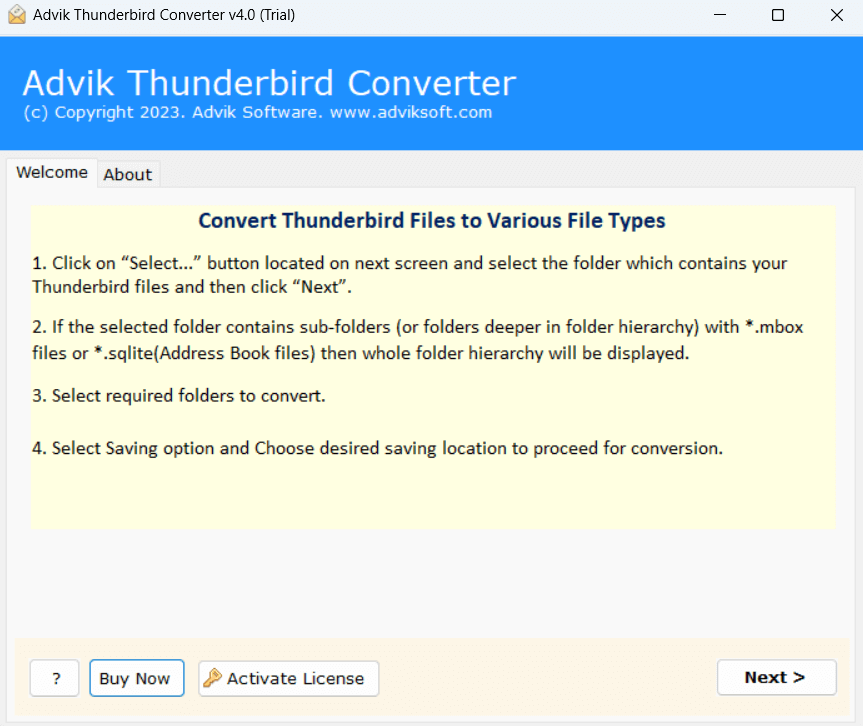
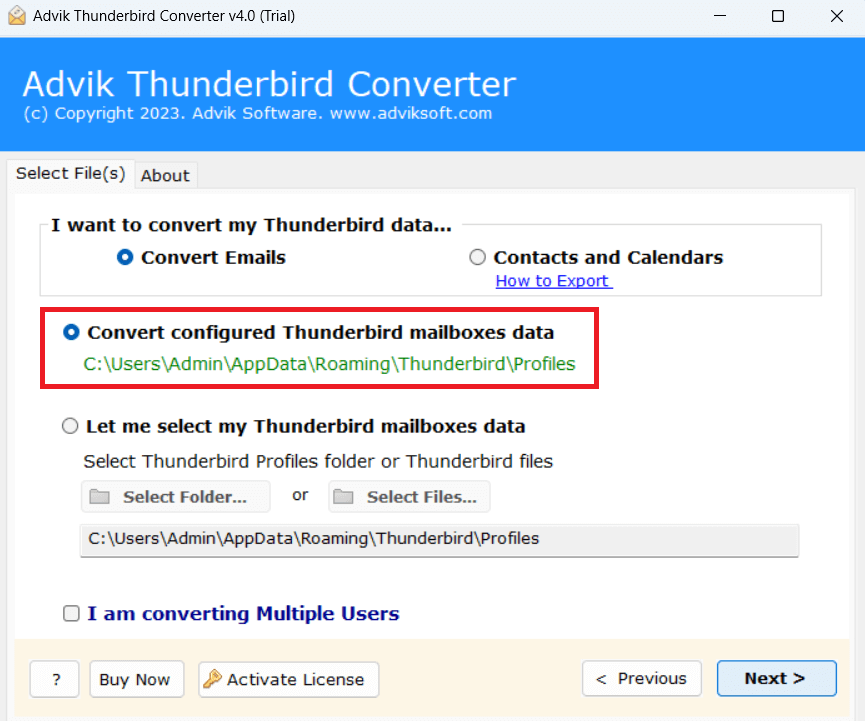
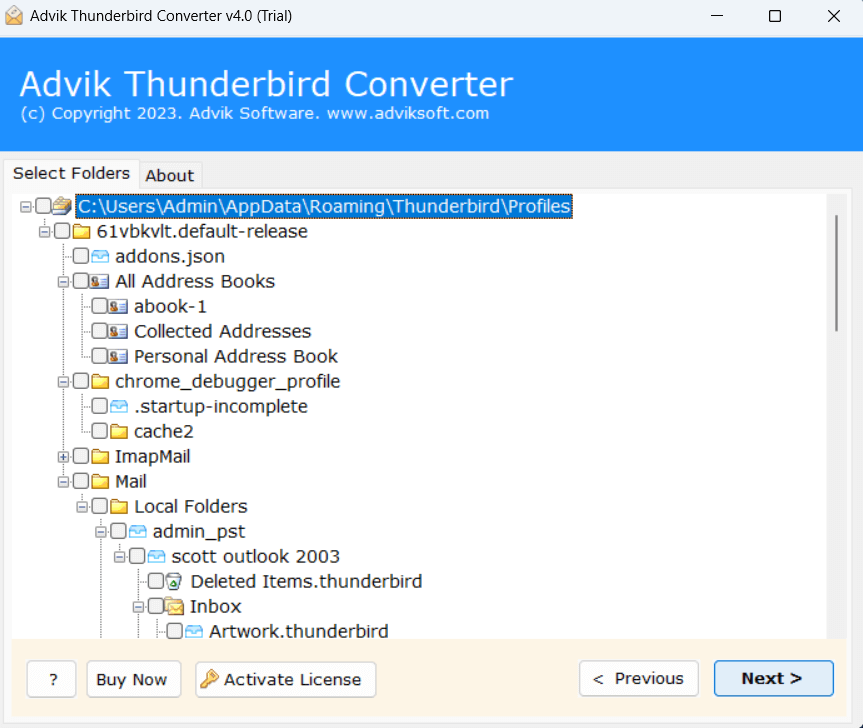
Step 2. Choose the configured Thunderbird profile or mailbox data that you want to process.
Step 3. Choose email folders that you want to convert into PST file.
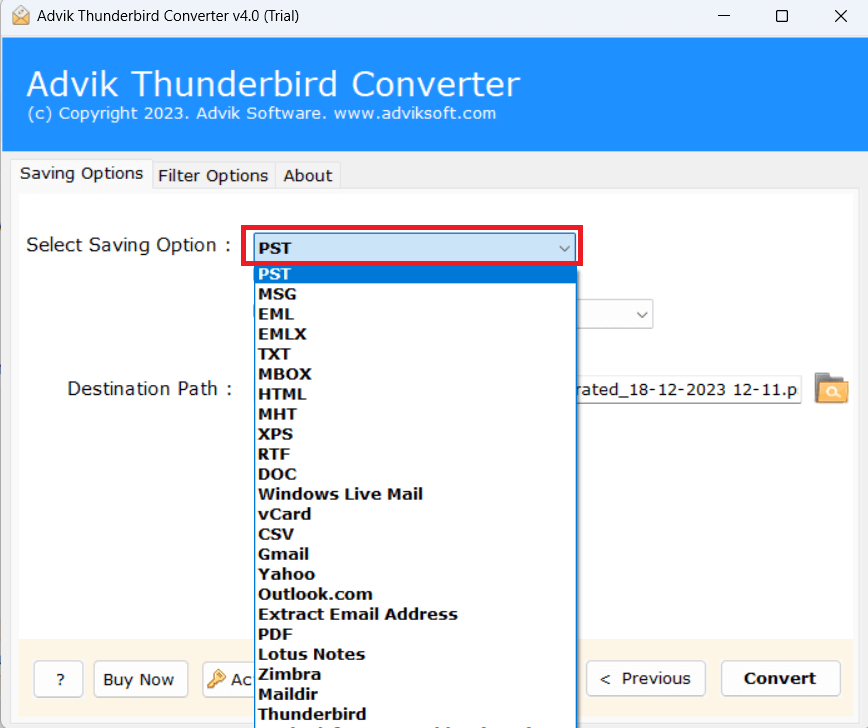
Step 4. Select PST from the available saving options. This commands the software to create an Outlook-compatible PST file.
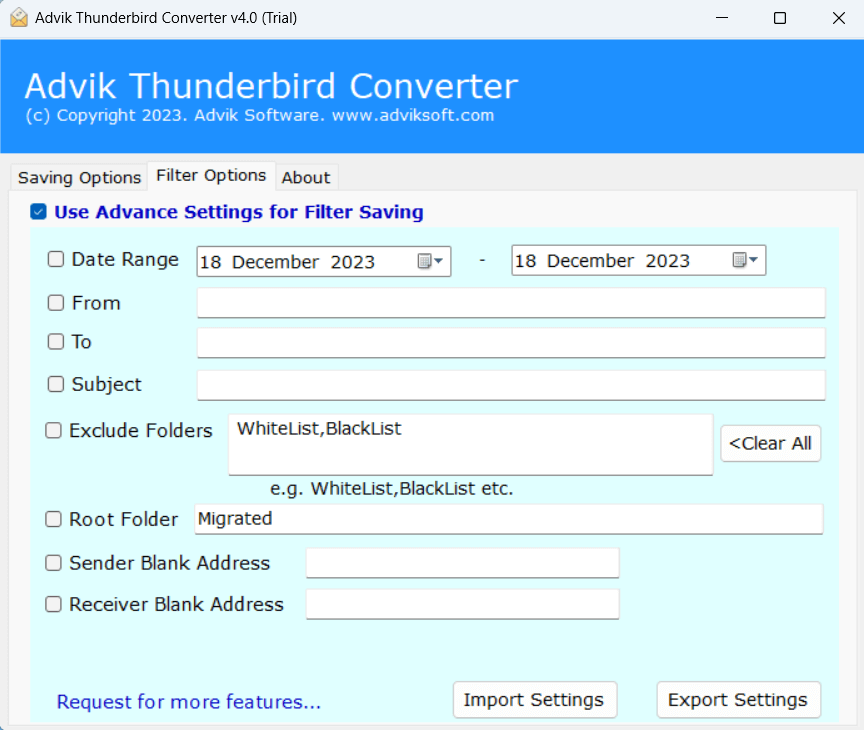
Step 5. If you do not want to convert the entire mailbox then you can also use the available filter options to specify the data you want to export.
Step 6. Choose the target location and then click the Convert button.
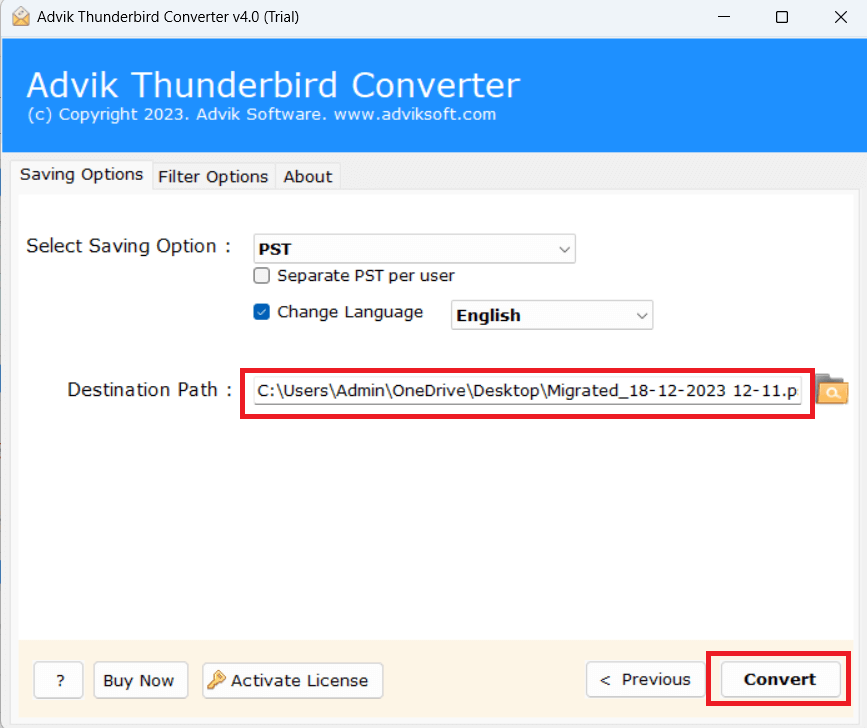
The software will start converting Thunderbird emails to PST file.
After completing this task, you will get the resulting data file in the destination location.
Open the resulting PST in Outlook and verify the converted mailbox.
How Does Thunderbird to PST Conversion Tool Maintain Folder Structure?
When you move a large mailbox, maintaining the original folder structure can be almost as important as moving the messages.
For example, a Thunderbird mailbox may have:
Inbox, Sent, Drafts
Projects: Project A and Project B; Customers: Customer 1 and Customer 2; Archives: 2024 and 2025
A folder that preserves the conversion process can make the resulting PST easier to navigate in Outlook.
The hierarchy of the mailbox folder and subfolders is preserved while converting, says Advika Thunderbird Converter.
However, it is still a good idea to test the process with the trial version and verify the output against your specific Thunderbird mailbox before starting a large conversion.
How to Check the Exported PST File in Outlook
Don’t consider the PST file creation to be the end of the process. Verify the result in Outlook.
PST verification checklist
- Launch Outlook.
- Open the exported PST file
- Open the mailbox and its folders.
- Check Inbox, Sent Items, Drafts and user created folders
- Check the folder structure against Thunderbird.
- Check some old and new messages.
- Review sender, recipient, subject and date information.
- Open any key attachments to verify that they are available.
- Check subfolders and archived emails
- Check for presence of important messages before deleting original Thunderbird data.
For a business mailbox or important archive, don’t just check the Inbox, but spot check messages from different folders and different time periods.
Watch How the Thunderbird to PST Converter Works Automatically
Final Words
Thunderbird doesn’t have an export to PST option natively, but there are a few ways you can move your email data into Outlook PST. IMAP synchronization is working, as long as the messages are still on the mail server. EML export may be helpful for selected messages.
For local Thunderbird MBOX data, large mailboxes, multiple folders, and folder-preserving conversion, a direct approach is a dedicated Thunderbird to PST converter. Whatever method you use, always open the resulting PST file in Outlook and verify that the folders, messages and attachments are all present before deleting your original Thunderbird data.
If you are converting a large Thunderbird mailbox, backup original Thunderbird profile and test the conversion on representative folders before processing the entire mailbox.
Frequently Asked Questions
Q1. Can I export a large Thunderbird mailbox to PST?
Ans. Yes, you can convert a large Thunderbird mailbox to PST, but the best way depends on how the mailbox is stored. If you have a large local Thunderbird mailbox with multiple folders, it is more feasible to use a dedicated Thunderbird to PST converter rather than exporting individual EML files. Try the conversion and check the PST file before removing the original data.
Q2. Is Thunderbird discontinued?
Ans. No. Thunderbird isn’t discontinued and still receives desktop releases. The current version as of September 18, 2026, is Thunderbird 156.0.1.
Q3. Can I export Thunderbird emails to PST without Outlook?
Ans. Yes, you can export Thunderbird emails to PST without Outlook using a dedicated Thunderbird to PST conversion Tool. However, you should check the converter’s current system requirements before using it.
Q4. How to bulk export Thunderbird emails to PST?
Ans. To export Thunderbird emails in bulk to PST, you can use a Thunderbird to PST converter that comes with an option to export multiple Thunderbird mailbox folders.
Q5. Does Thunderbird have a PST export option?
Ans. No, Thunderbird does not have any built-in Export to PST option. Thunderbird and Outlook have different mailbox formats. Thunderbird’s local mailbox data needs to be migrated or converted before it can be used in Outlook. It’s so because, Thunderbird and Outlook use different mailbox formats.
Q6. Will Thunderbird attachments also be transferred with emails into PST file?
Ans. Yes, it is possible if the chosen Thunderbird to PST conversion method supports attachment preservation. After conversion, open a few messages that have different attachments in Outlook to confirm that the attachments are accessible.
Q7. How do I check PST after Thunderbird email conversion?
Ans. Open the resultant PST in Outlook and check the folder structure, message counts, dates, senders, recipients and attachments after converting Thunderbird emails to PST.