How to Import MBOX to Thunderbird: Top 3 Methods
Short Answer: Thunderbird can import an MBOX file directly: go to Tools -> Import -> Import from file -> Mailbox file, then select the .mbox file you want to import. For older Thunderbird versions, multiple MBOX files or folder hierarchies, you can use the ImportExportTools ND add-on.
For large MBOX archives, multiple files or selective email migration, a dedicated MBOX converter can provide a more convenient way to import MBOX to Thunderbird.
MBOX is a common mailbox format used by Thunderbird, Apple Mail, Google Takeout and several other email applications. If you have an MBOX file containing old or archived emails, you can import it into Thunderbird and access those messages again.
The method you should use depends mainly on where your MBOX data came from. This guide explains three different approaches, along with common errors and ways to verify that the imported emails are intact.
Which Thunderbird Version Do You Have?
Before importing MBOX, check your Thunderbird version because the available menus and add-on compatibility can vary between releases.
To check it:
- Open Thunderbird.
- Click on the Menu button.
- Go to Help -> About Thunderbird.
- Check the version number displayed in the About window.
Thunderbird 156 is the current desktop release. If you are using an older version, the menu names may look slightly different.
There is also an important difference between the built-in Import tool and an MBOX add-on:
| Your Situation | Recommended Method |
|---|---|
| MBOX is part of an old Thunderbird profile | Thunderbird built-in Import |
| You have one standalone MBOX file or many MBOX files/subfolders | ImportExportTools NG |
| You need selective or bulk importing | Advik MBOX Converter |
Method 1. Import MBOX to Thunderbird Using Built-in Import
Thunderbird’s native Import feature is useful when the MBOX data belongs to another Thunderbird installation or profile. It is not the same as selecting a standalone MBOX file from File Explorer.
If you have an old Thunderbird profile containing your mail, follow these steps:
- Open Thunderbird on your system.
- Click Menu -> Tools -> Import.
- Choose Import from another Thunderbird installation and continue.
- Select a profile folder and browse to the old Thunderbird profile that contains your email data.
- When it displays the available import categories, select Mail Messages.
- Continue through the Import Wizard and allow Thunderbird to copy the messages into the new profile.
Once the process finishes, check Local Folders for the imported mail. Depending on the amount of data, Thunderbird may take some time to rebuild indexes before all messages become visible.
Note: If you only have a standalone file such as archive.mbox, use ImportExportTools NG. The built-in import wizard is intended for importing data from a Thunderbird profile rather than directly opening an arbitrary MBOX file.
Method 2. Import Many MBOX Files with Subfolders Using ImportExportTools NG
First of all, make sure that you have installed the Thunderbird application on your system. Then, you can follow these steps and make your Thunderbird import mbox file.
Follow the step-by-step guide below to open MBOX file in Thunderbird manually.
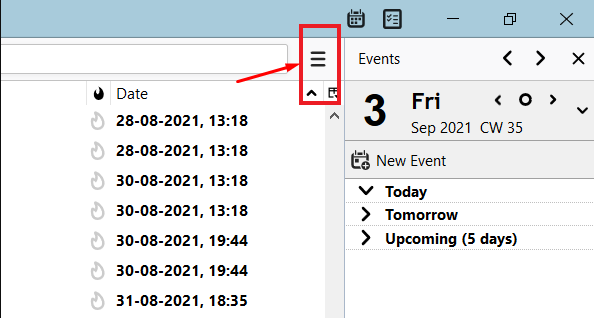
1. Open the Thunderbird application on your system and head to the 3 line menu icon.
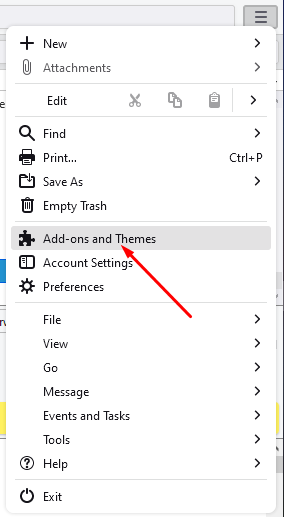
2. Select “ Add-ons and Themes ” and proceed.
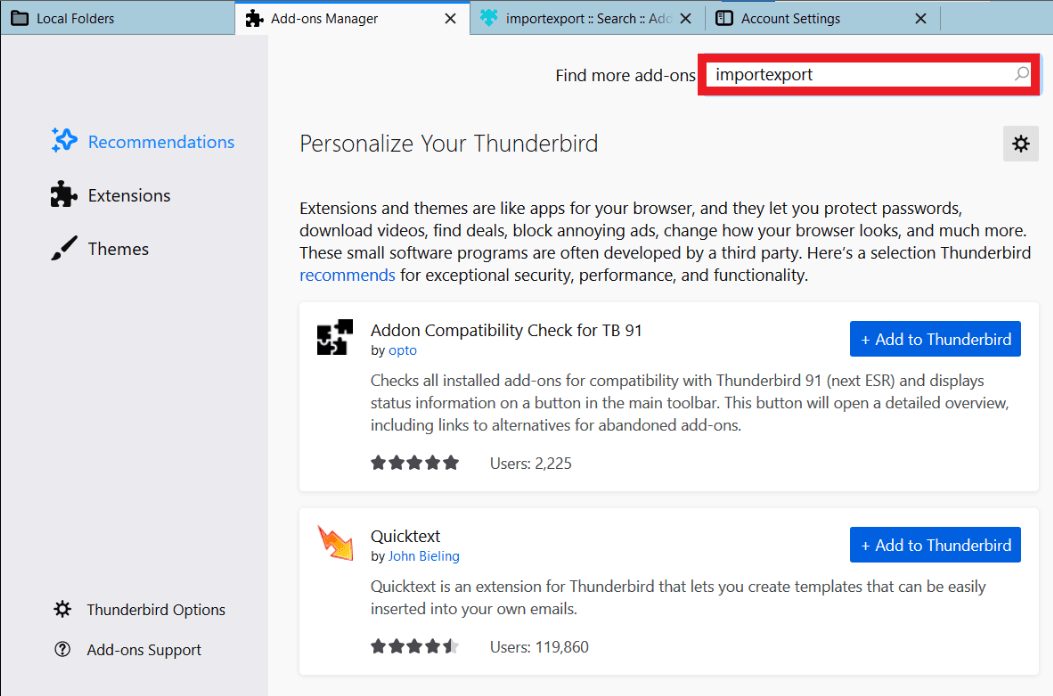
3. Next, type “ImportExportTools NG” into the search box and hit the enter button.
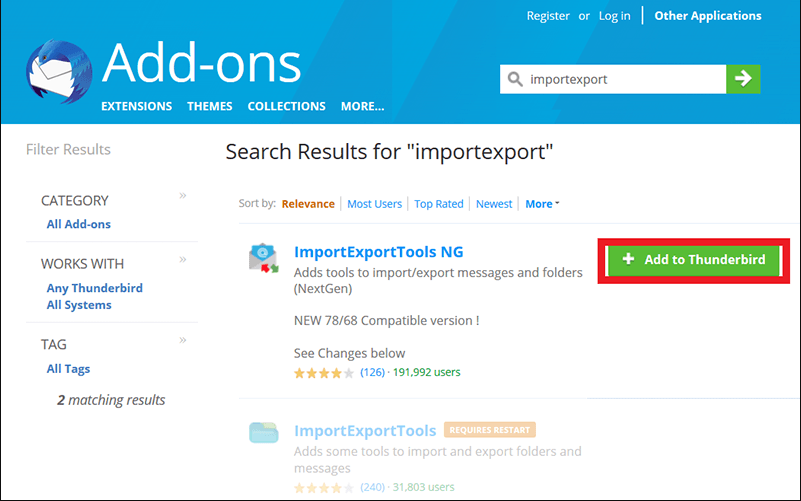
4. Click on the “+Add to Thunderbird” option in the new tab now.
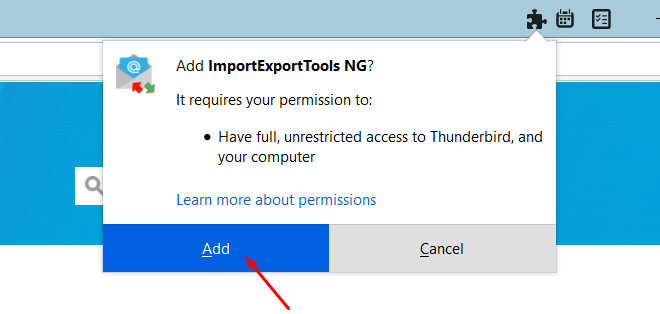
5. Then, click on the “Add” button to add it into your Thunderbird app.
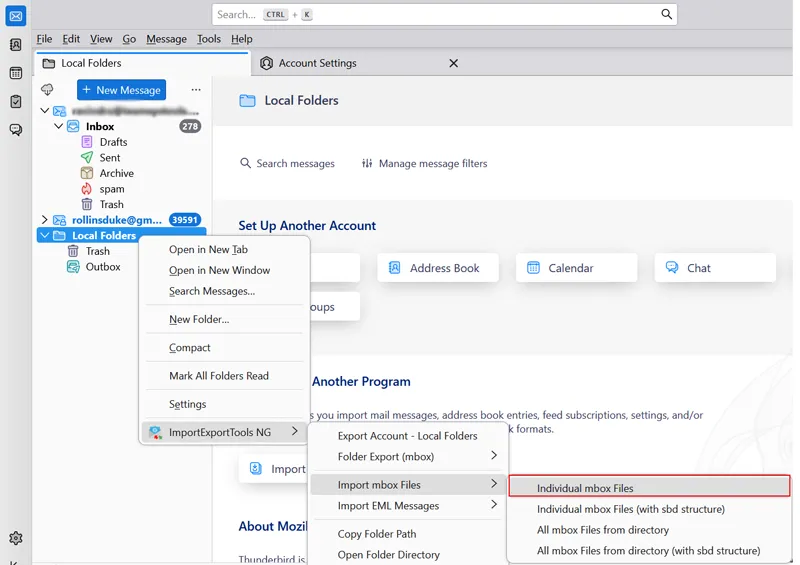
6. Restart the Thunderbird client and then right-click on Local Folders and select ImportExportTools NG option.
7. After that, choose Import MBOX Files and click on Individual MBOX Files.
8. Browse the MBOX file from your system and click on the Open button.
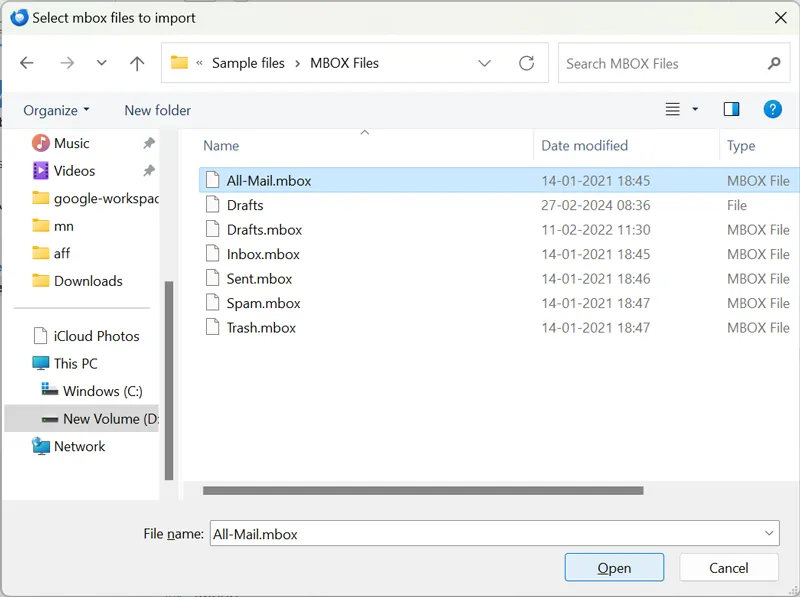
Done!! This is how to use Thunderbird import MBOX file.
Limitations of Manual Method
- Import only into Local Folders, not into a configured account.
- Inline images and some non-standard headers can break.
- If import MBOX File is disabled in Thunderbird, you can’t be able to use this method.
Note: If you added a throwaway account just to enable the import then you can remove it.
- Go to the 3-line menu icon and select Account Settings.
- Choose the account in the left pane.
- Click on Account Actions >> Remove Account.
Method 3. Going the Other Way: Import MBOX into Thunderbird Directly
If you are facing issues in importing large MBOX files through Thunderbird’s ImportExportTools NG plug-in or Thunderbird’s native Import to Thunderbird Profile folder, then you can try an automated solution. Advik MBOX Converter is one such alternate method that you can use to transfer your mailbox data into Thunderbird App. I personally tried and able to import all the data of MBOX file into Thunderbird profile while maintaining the accuracy of data. Also, here you can use email filter to import only those emails that you want in Thunderbird, such as on the basis of to, from, subject etc. It removes dependency on add-ons and provides a complete and secure way to get your work done.
While using this method, I have figured out some helpful features;
- It supports large or multiple MBOX files
- Compatible with all Thunderbird versions
- Work with damaged or orphaned mailbox file
- Provides a bulk email transfer option.
You can download it’s free trial version to check if it works as per your need or not;

How to Import MBOX in Thunderbird With This Tool
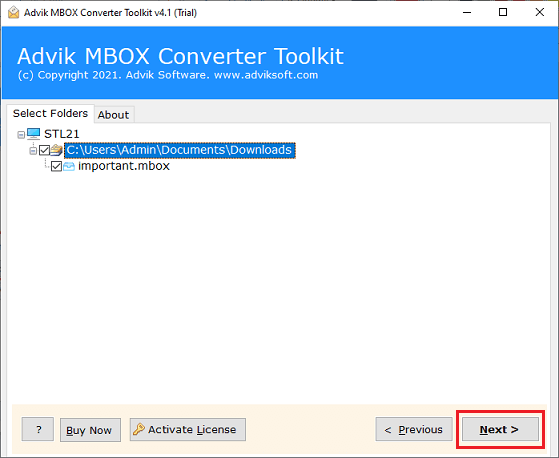
Step 1. Run the software and add MBOX files & folders.
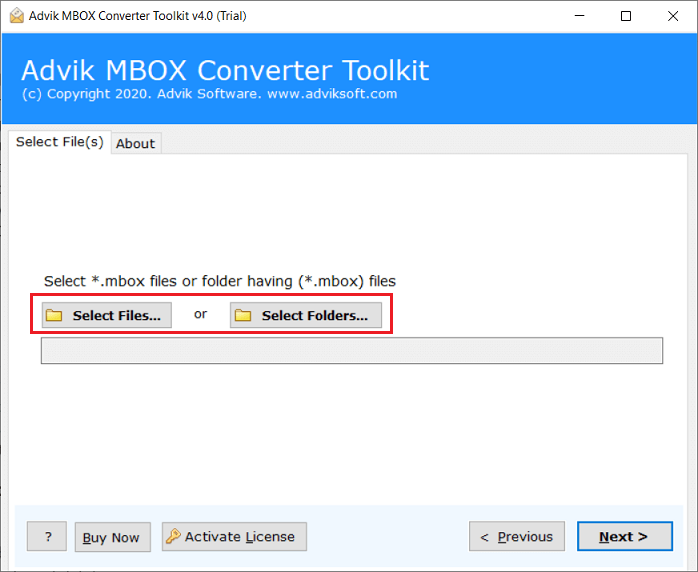
Step 2. Choose mailbox folders and then click the Next button.
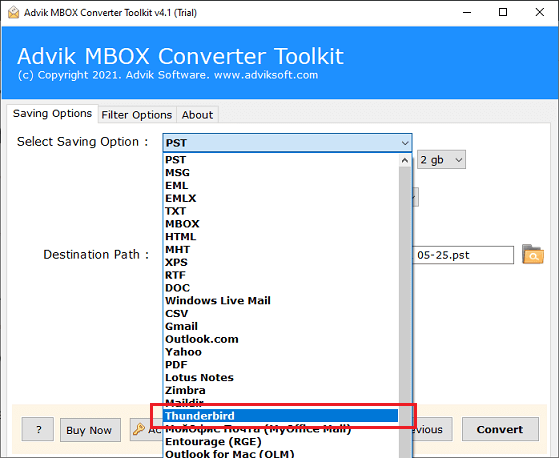
Step 3. Now Select Thunderbird as a saving option.
Step 4. Click on the Convert button to start the process.
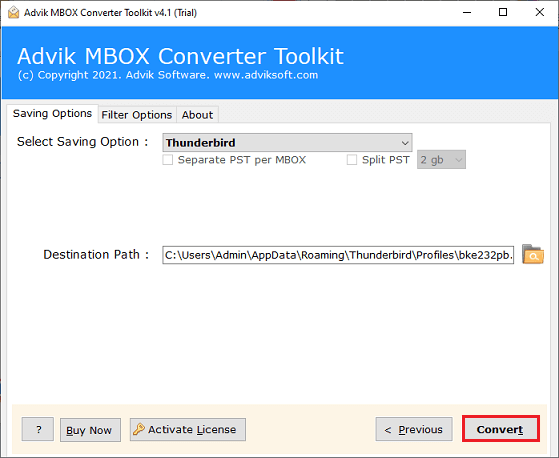
Done! The software will start copying or migrating emails from MBOX file to Mozilla Thunderbird.
Once the importing process is complete then open Thunderbird and check the imported MBOX file.
Watch Video Tutorial
Check the Result After Importing MBOX
Do not consider the migration complete simply because the folder appears in Thunderbird. Verify the actual messages.
After importing, check:
- Total message count in each folder
- Old and recent emails
- Sender and recipient information
- Subject lines
- Email dates
- Attachments
- Inline images
- Folder and subfolder structure
Our Test
We tested the MBOX import workflow on my Windows 10 PC using a current Thunderbird release and ImportExportTools NG. After importing the MBOX data, we checked the resulting folders and opened individual messages rather than relying only on the folder count.
For your own test, open several emails from different dates and folders and check their attachments as well. This is especially important when working with a large archive because an import can appear successful while individual messages are still being processed.
Common Open MBOX in Thunderbird Problems and Fixes
#1. Import MBOX File is Disabled
Cause: A valid destination folder has not been selected; the destination is an IMAP folder.
Fix: Select Local Folders or a folder under Local Folders before opening the ImportExportTools NG menu.
#2. MBOX File Does Not Appear in Thunderbird
Cause: Thunderbird does not automatically detect standalone MBOX files stored on your computer.
Fix: Use ImportExportTools NG to import the file instead of simply double-clicking it.
#3. Import Folder is Empty
Cause: The MBOX file may be empty, damaged, incorrectly selected or still being indexed.
Fix: Wait for indexing to finish, restart Thunderbird and verify the original MBOX file using another copy if necessary.
#4. Emails Appear But Attachments are Missing
Cause: The original MBOX may not contain the complete MIME message data or the source archive may have been incomplete.
Fix: Open several messages from the original source and compare their attachments with the imported copies.
#5. ImportExportTools NG is Not Compatible
Cause: Thunderbird versions change and add-ons need to support the installed release.
Fix: Check the add-ons current compatibility before updating Thunderbird. If the ImportExportTools NG does not support your release, consider Thundernbird’s native profile import where applicable or use a dedicated conversion tool.
Final Words
Thus, how to convert MBOX to Thunderbird blogs comes to an end. You can now understand how easy it was to upload MBOX to Thunderbird using the manual and professional solution. After going through the above manual vs. automated solutions comparison table, you can understand which is better to choose. The manual methods are free, but some drawbacks are unavoidable. To overcome these limitations, we have offered an instant approach that will directly import MBOX to Thunderbird and more previous versions easily.
Frequently Asked Questions
Q1. How can I transfer Gmail mbox to Thunderbird?
Ans. You can transfer Gmail MBOX file to Thunderbird using the ImportExportTools NG add-on.
Q2. How do I import files into Thunderbird inbox?
Ans. To import files into Thunderbird’s inbox, you can simply drag and drop the files into the inbox folder in Thunderbird.
Q3. How to add MBOX file to Thunderbird in bulk?
Ans. The software allows you to add multiple MBOX files at once.
Q4. Can I import Apple Mail MBOX to Thunderbird using this application?
Ans. Yes, this tool supports MBOX file of more than 30+ email clients, including Apple Mail.
Q5. How to migrate selective emails from MBOX files to Mozilla Thunderbird?
Ans. Yes,You can import selected emails based on Date Range, Sender, Recipient, etc. using Filters.
Q6. Does Thunderbird automatically detect MBOX files from my system?
Ans.Thunderbird does not automatically detect MBOX files.